Bulk-generate & schedule posts in seconds with Smart Scheduling. Try now!
How to schedule tweets in 2026: 3 practical methods and tips
 Published by Saif Ali
If you manage X regularly, posting in real time becomes hard to sustain. Between time zones, content approvals, and daily work, relying on manual posting leads to missed slots and uneven activity. That’s why knowing how to schedule tweets matters in 2026.
X (formerly Twitter) favors consistent posting. Accounts that publish at predictable times tend to maintain better visibility, while irregular posting makes even good content easy to miss. When everything is posted by hand, teams end up using reminders, spreadsheets, and message threads just to keep track of what went out.
Scheduling solves this by letting you plan tweets in advance, publish them at set times, and keep your feed active without constant monitoring. It also makes it easier to review content, spot gaps, and adjust pacing before anything goes live.
In this guide, you’ll learn three practical ways to schedule tweets:
- Using X’s native scheduler on the desktop
- Planning and batching content with ContentStudio
- Scheduling tweets from your phone using a mobile app.
Let’s get started.
Why brands should schedule tweets?
Content creators, brands, agencies, and active X users should learn how to schedule tweets because it directly improves how their accounts perform day to day.
- Consistency across time zones: Scheduling helps you publish on a regular cadence, thus driving consistent engagement, even when your audience is spread across regions. Tweets go live when followers are online, not just when convenient.
- More room to grow on X: X continues to expand, with 429 million users in 2024 and reaching more than 561 million in 2025. Scheduling helps you stay visible in a crowded feed by maintaining steady activity rather than posting in bursts.
- Less time spent posting: Batching content and scheduling it in advance removes the need to log in multiple times a day. Teams can plan once and move on to higher-priority work.
- Fewer mistakes and missed posts: Pre-written and reviewed tweets reduce last-minute errors, broken links, and forgotten announcements, especially during busy campaigns.
- Stronger engagement: Scheduling lets you publish at proven high-activity windows, whether that’s early morning in one region or evening in another.
- Better campaign planning: You can line up tweets around launches, events, or seasonal moments instead of reacting at the last minute.
- Clearer performance tracking: Most scheduling tools help you track social media KPIs, including analytics, making it easier to review results and adjust what you post next.
Let’s discuss how exactly you can schedule Twitter posts to get these benefits.
How to schedule tweets on X (Twitter) via website?
If you only need a simple way to learn how to schedule tweets for one account, X’s built‑in scheduler is a helpful starting point. It is free, part of the platform, and works well for solo users or very small teams that post a few times per week.
The native scheduler currently works on the desktop version of X.
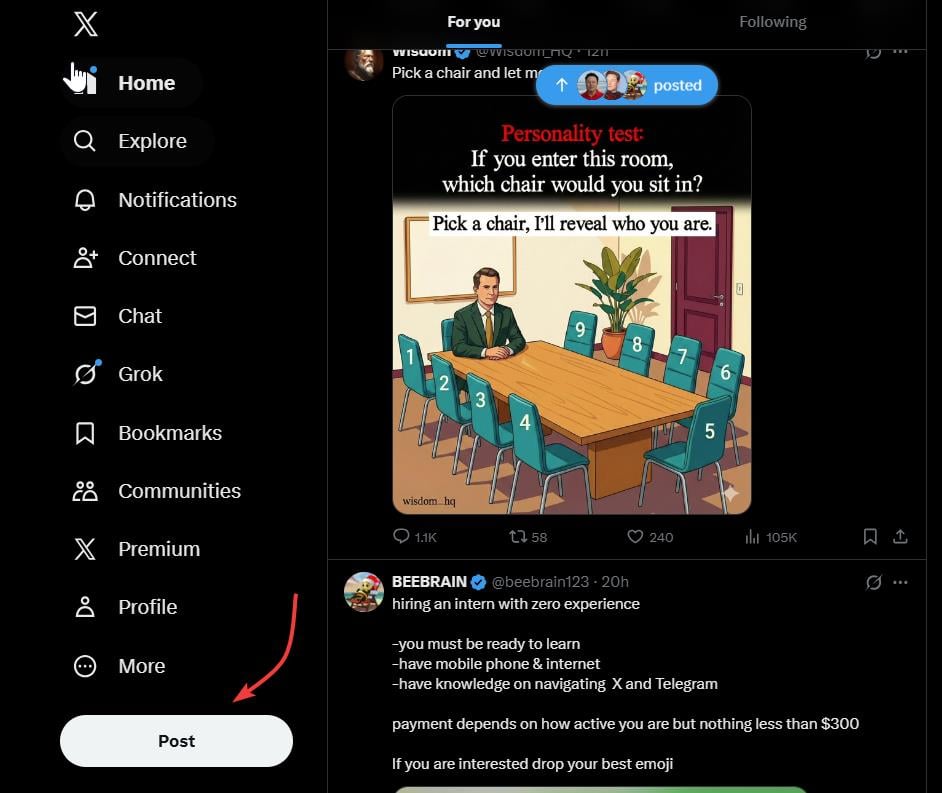
Step 1: Log in to your X (Twitter) account
Open your web browser and access X.com or Twitter.com. Make sure you are logged in to the right account where you want to schedule your tweet.
Step 2: Compose your tweet
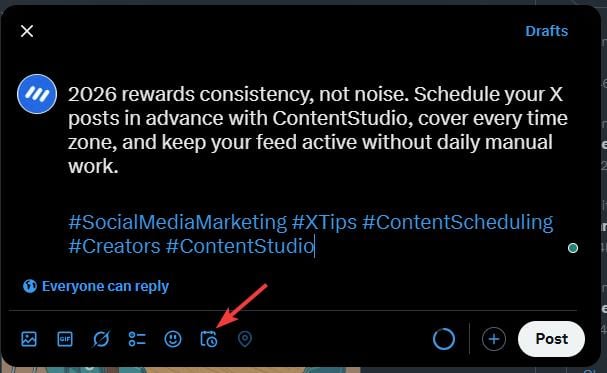
Compose your tweet with relevant content, images, GIFs, and hashtags. You can also use the free Twitter post generator to craft engaging content for your account.
Click on the calendar/schedule icon located at the bottom of the post composing window.
Step 3: Choose date and time
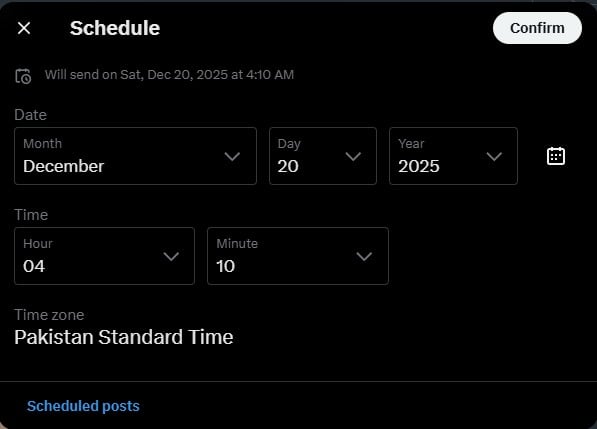
Select the date and time at which you want your tweet to go live.
Step 4: Schedule your post
Once you have chosen the final date and time, click on the Schedule button, and X will post your content at the selected time.
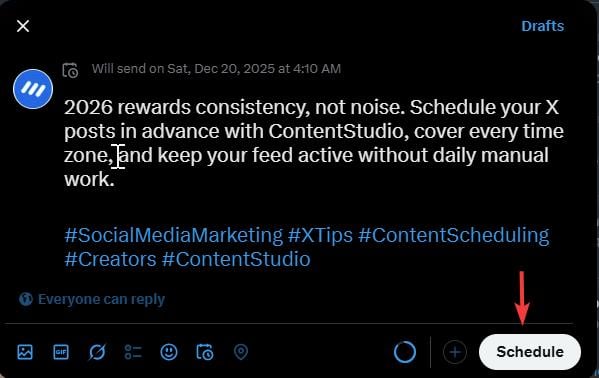
By following these simple steps, you can schedule your tweets to fulfill your basic requirements. If you want more advanced scheduling options like scheduling Twitter threads, you will have to use a third-party Twitter scheduler.
How to see scheduled tweets?
You can view your scheduled tweets by following these steps:
1. Open your X account and click on Post
2. Open Drafts.
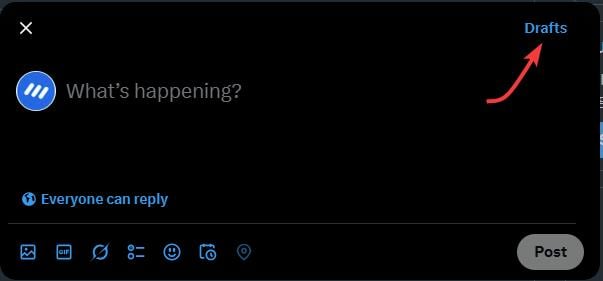
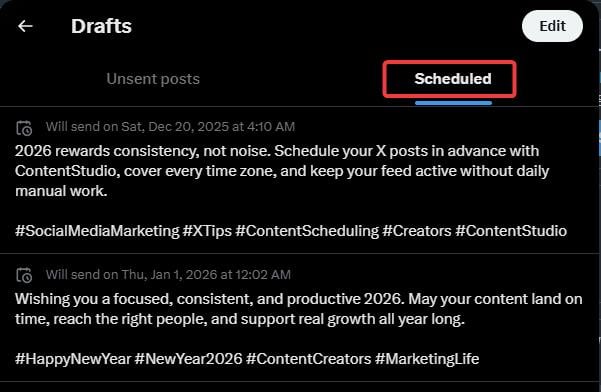
3. You can see your Unsent posts and Scheduled posts here. Click on the Scheduled tabs to find such posts. You can also use the Edit option to change the content of these tweets or change the time at which they are scheduled to go live.
Limitations of scheduling tweets with X (Twitter)
Scheduling tweets natively has some significant limitations, including:
- Web-only scheduling: You cannot schedule tweets directly from the mobile app, as the native scheduling feature is limited to the web.
- No support for threads: Scheduling is restricted to single tweets, making it impossible to plan threads in advance.
- Draft synchronization issues: Drafts created on the mobile app are not accessible on the web, and vice versa.
- No grouping by categories: Tweets can’t be organized into categories for better content management.
- No optimal time suggestions: Unlike third-party tools, Twitter doesn’t recommend the best posting times based on your audience’s activity.
- Lack of cross-platform management: Native scheduling only works for X, requiring separate tools for managing other social platforms.
- No collaboration options: Teams can’t review, edit, or approve scheduled tweets within the platform, making it less effective for businesses.
Considering the numerous limitations of scheduling tweets natively, it is important to choose a third-party social media management tool and scheduler like ContentStudio.
X’s native scheduler and ContentStudio Comparison
Here is a quick comparison between using ContentStudio and X’s native scheduler:
| Feature | X’s Native Scheduler | ContentStudio |
|---|---|---|
| Platforms supported | X only | X plus other social platforms |
| Planning & calendar | Basic scheduling | Full content calendar and planning |
| Team workflows | Limited | Approvals, roles, and collaboration |
| Analytics | Basic metrics | Detailed reporting and insights |
How to schedule tweets on X (Twitter) with ContentStudio?
ContentStudio is a powerful X scheduler that allows you to plan an entire content calendar and easily schedule Twitter posts. Here’s how exactly you can use ContentStudio to manage your presence on X:
Step 1: Access the ContentStudio dashboard
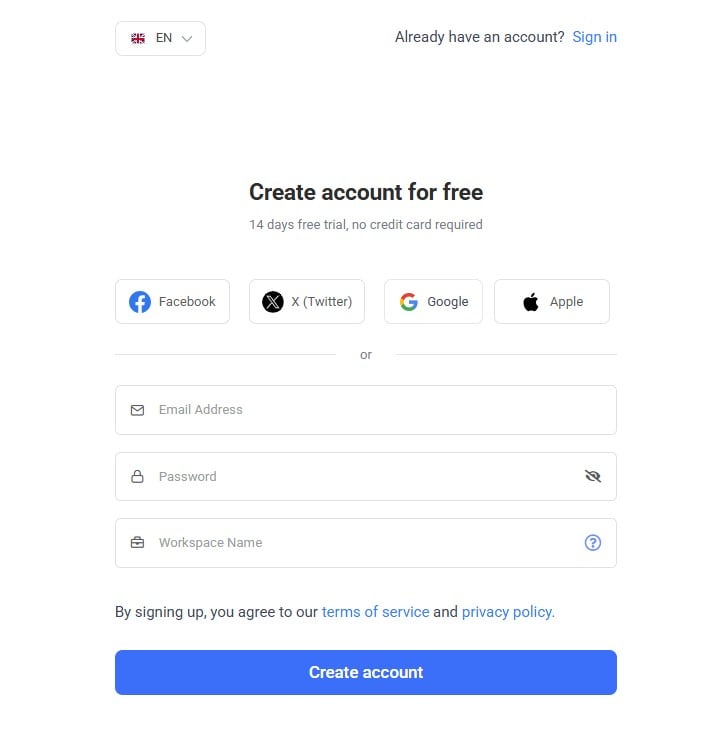
Open ContentStudio’s official website in your web browser and log in to your account. If you don’t have an account already, you can sign up or log in with your Facebook, X, or Google account.
Step 2: Connect your X (Twitter) account
Click on your profile picture in the top-right bar and open Social Accounts.
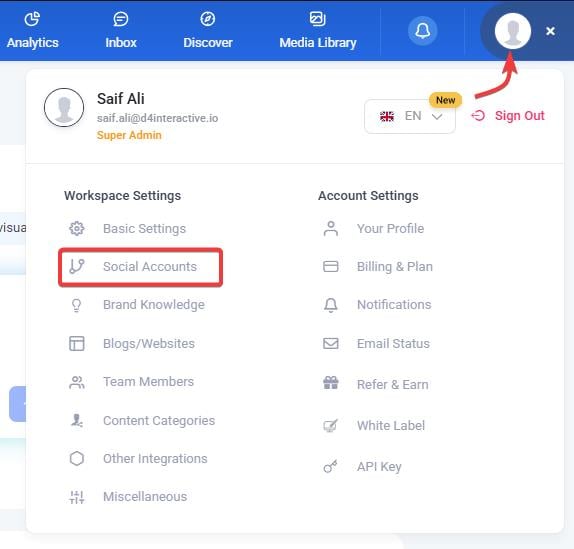
To post to X (Twitter) through ContentStudio, you need to connect your X account first.
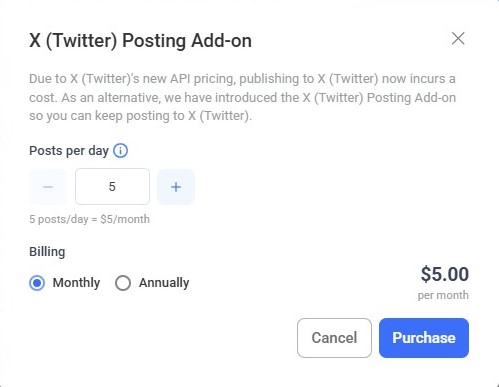
Note: Because of recent changes to the X (Twitter) API, Custom Apps are no longer supported. To address this, ContentStudio now uses the X (Twitter) Posting Add-on, which allows you to continue publishing content to X without interruption.
The connection flow is guided and straightforward, with clear on-screen instructions to help you complete the setup without confusion.
Step 3: Compose your tweet
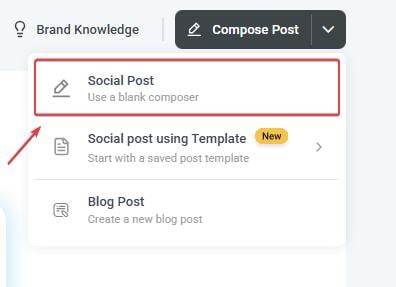
Open Post Composer by clicking on the Compose option below the navigation bar and selecting Social Post.
Select your X account from the left bar of connected accounts and compose your tweet with a relevant caption, hashtags, images, or video. Unlike in X’s native scheduling feature, you can also create and schedule threaded tweets in ContentStudio’s Post Composer.
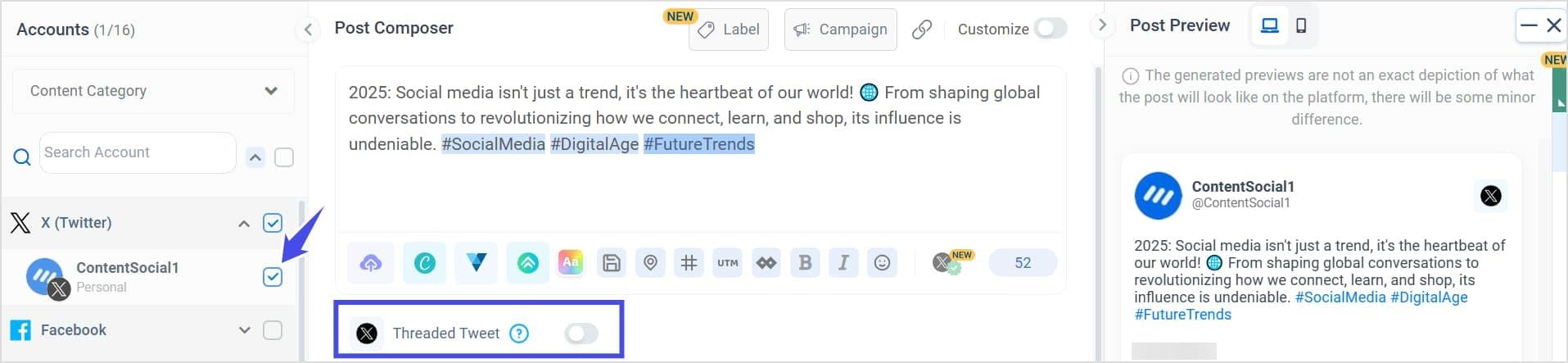
Once your tweet is finalized, you can easily post it immediately or schedule it.
Step 4: Schedule your tweet
Select the Schedule radio button to choose a suitable date and time at which you want your tweet to go live.

A new window will pop up where you can select the date and time to publish the tweet.
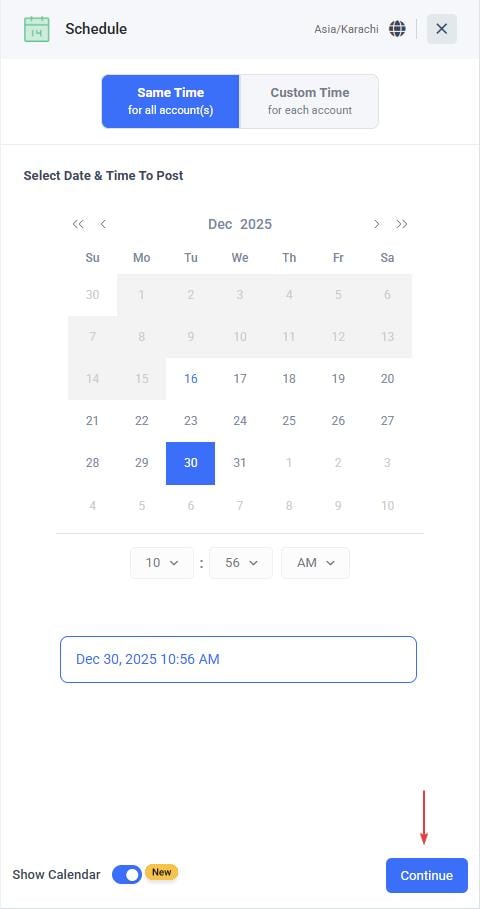
Click the Schedule button to complete the process and add your tweet post to the content calendar so that ContentStudio can post it at the selected time.
How to view scheduled tweets on ContentStudio?
You can easily view your scheduled tweets on ContentStudio by following these steps:
Step 1: Log in to your ContentStudio account with which you have scheduled your tweets.
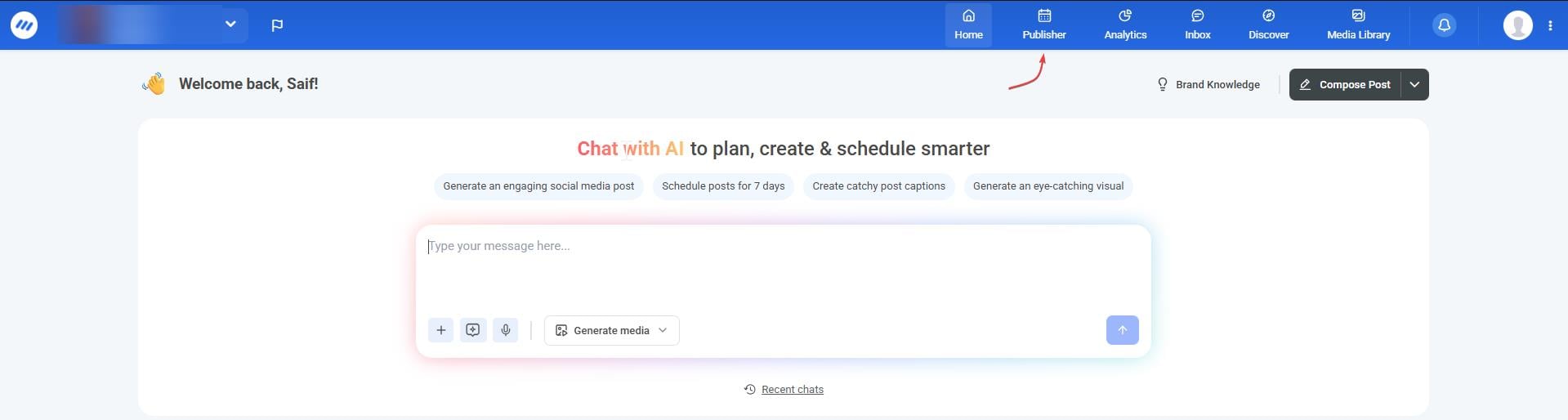
Step 2: Open Publisher from the dashboard to access your content calendar and see published as well as scheduled posts.
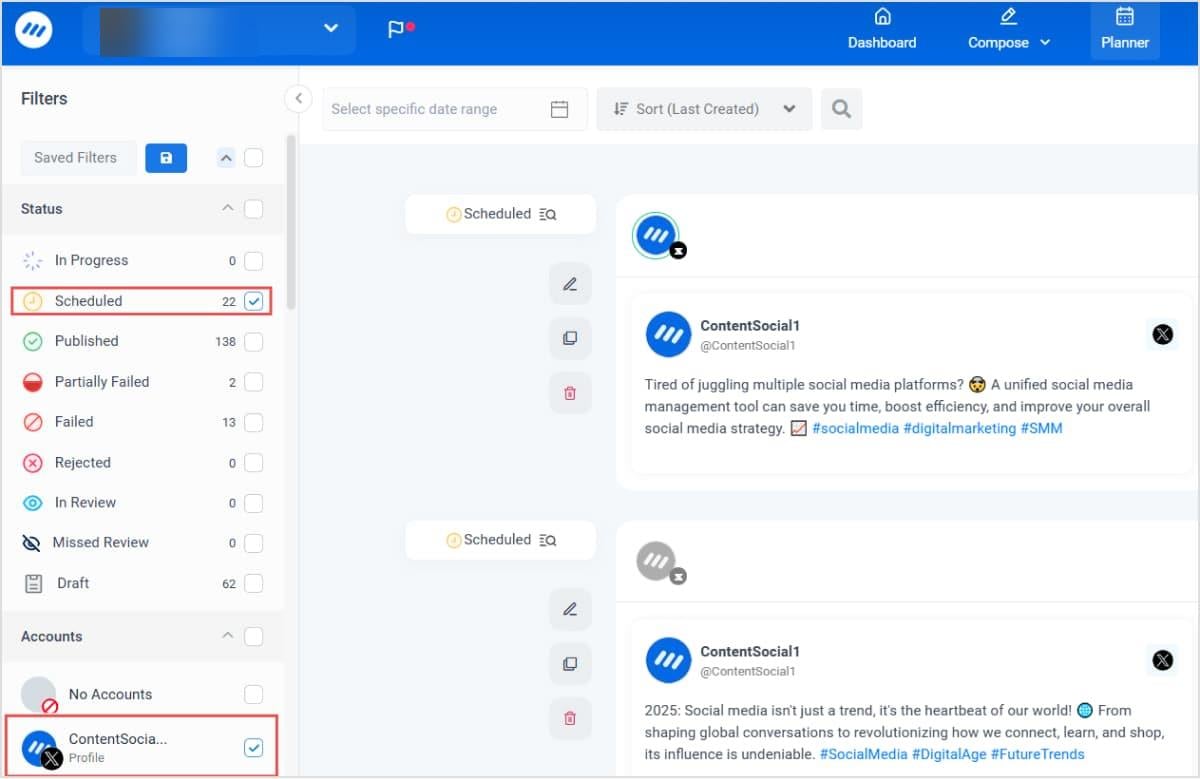
Step 3: All of your scheduled posts are shown under the Planner section. If you use ContentStudio to manage multiple social media accounts, there is a high chance you have many different types of scheduled posts. So, you can apply the filters from the left bar to quickly view your scheduled tweets.
The following video summarizes the steps you need to follow to schedule tweets or posts on X using ContentStudio:
How to schedule tweets on mobile phones?
Many users assume that since X provides basic scheduling functionalities through its website, they will also be able to schedule tweets through the X Android or iOS application.
But the truth is that Twitter and now X have never supported scheduling tweets or posts via the mobile app.
Hence, it is important to rely on a third-party app like ContentStudio to schedule tweets on mobile devices.
The entire process of using the ContentStudio app to schedule tweets is quick and simple:
Step 1: Install the ContentStudio app
A secure, reliable, and user-friendly ContentStudio mobile app is available for both Android and iOS users. You can easily download it through the Google Play Store or Apple App Store.
Once installed, log in to your account to manage your social media profiles.
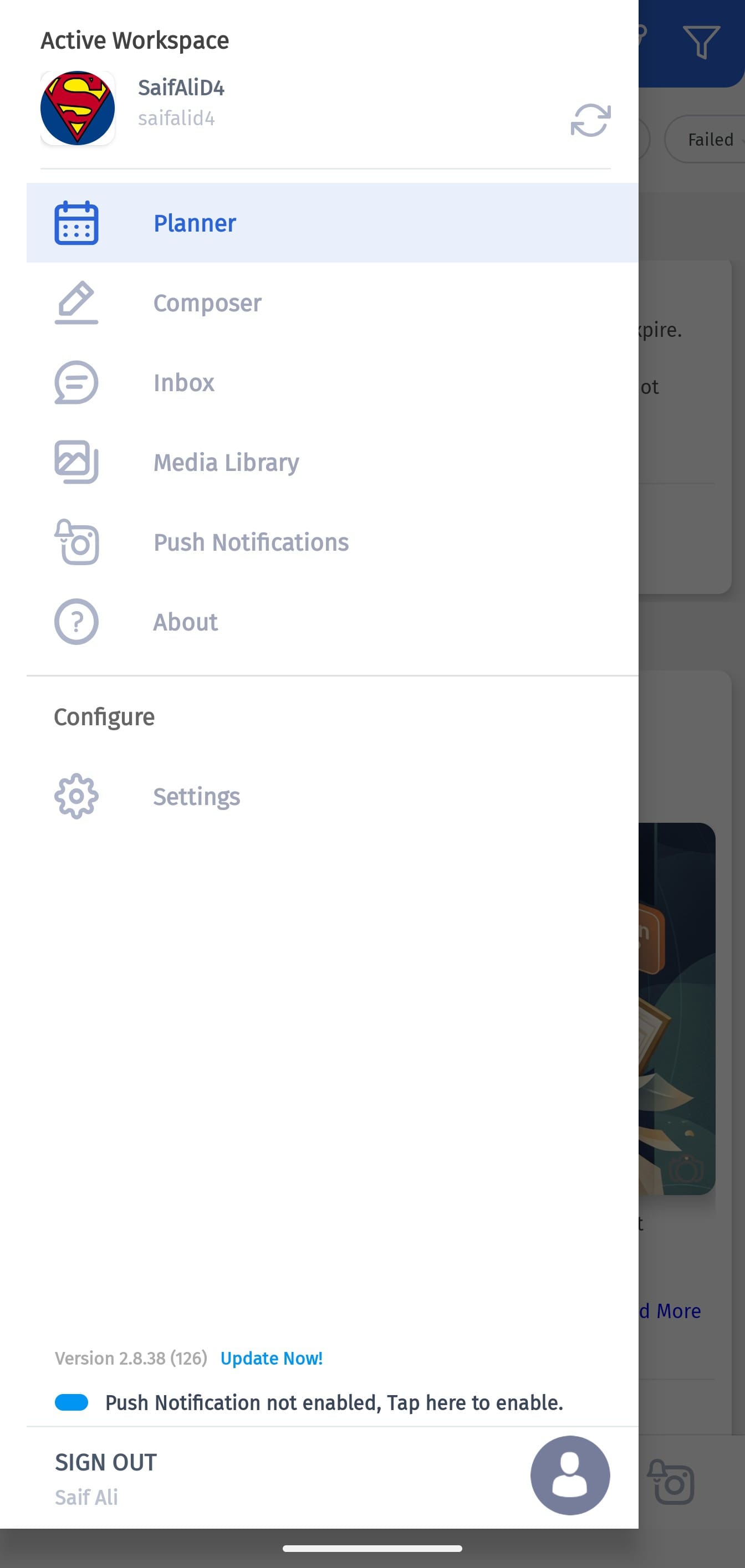
Step 2: Open composer
Tap the three horizontal lines option in the top left corner to access the navigation bar. Tap Compose to access the post composer within the app.
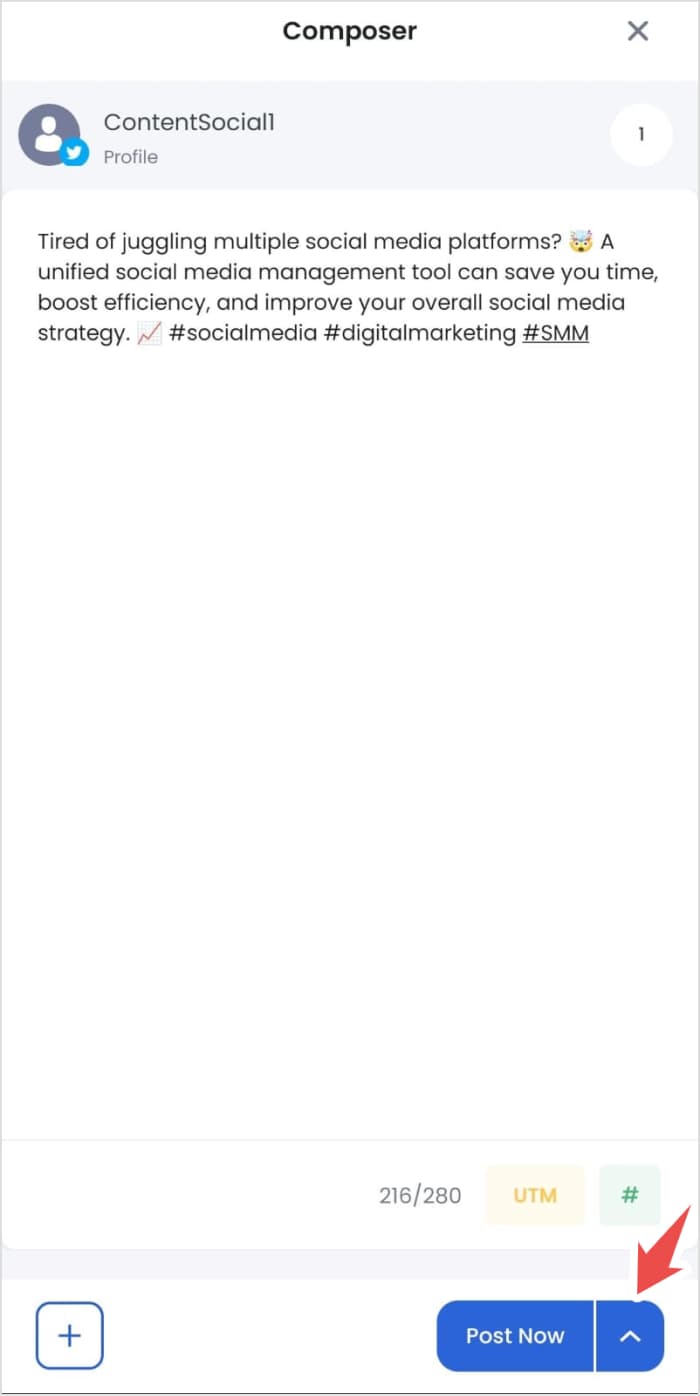
Step 3: Compose your tweet
Write your tweet and attach any relevant image or video if you want. Tap the ^ icon in the bottom right corner to access different posting options.
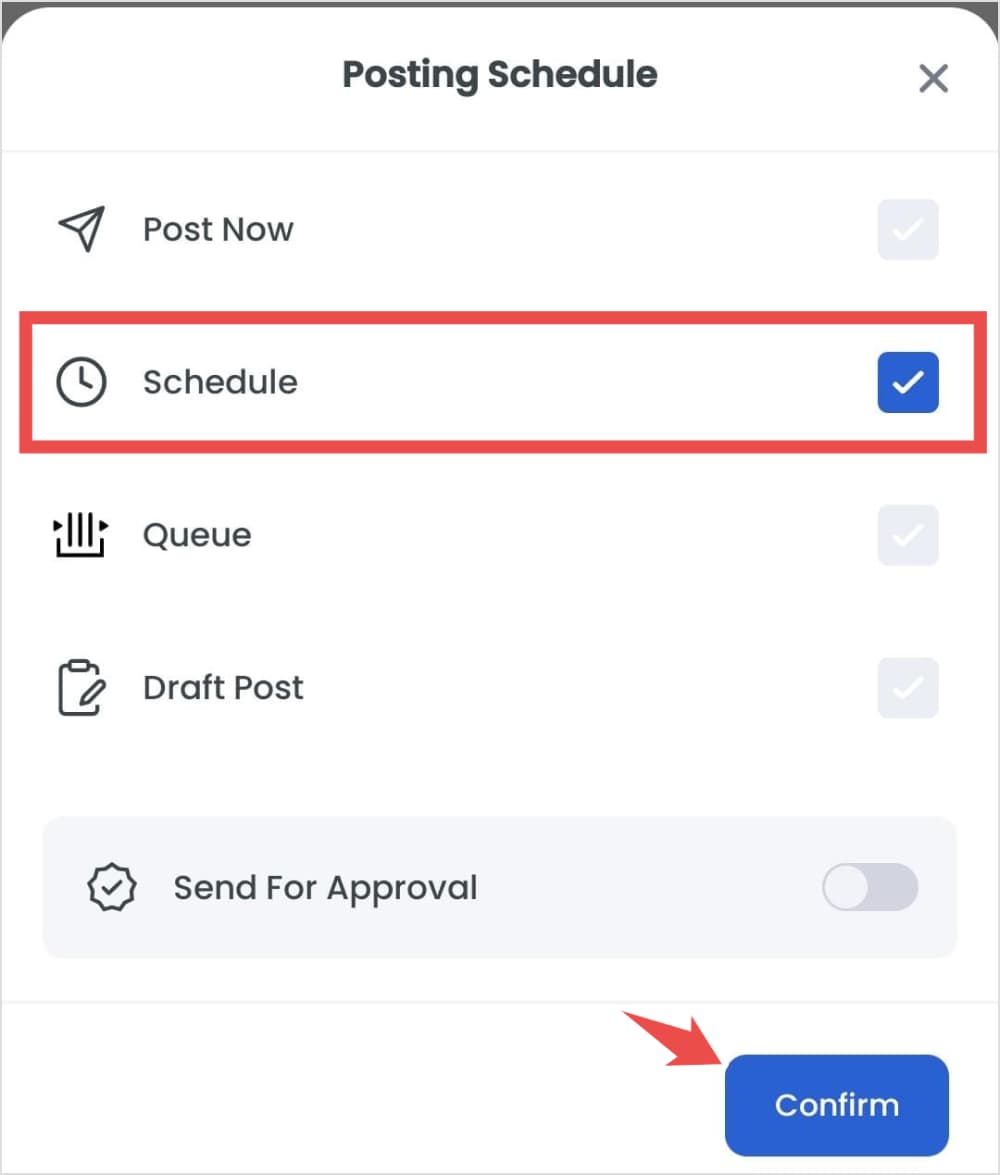
Step 4: Choose the schedule option
Tap the Schedule option and provide confirmation to choose a date and time.
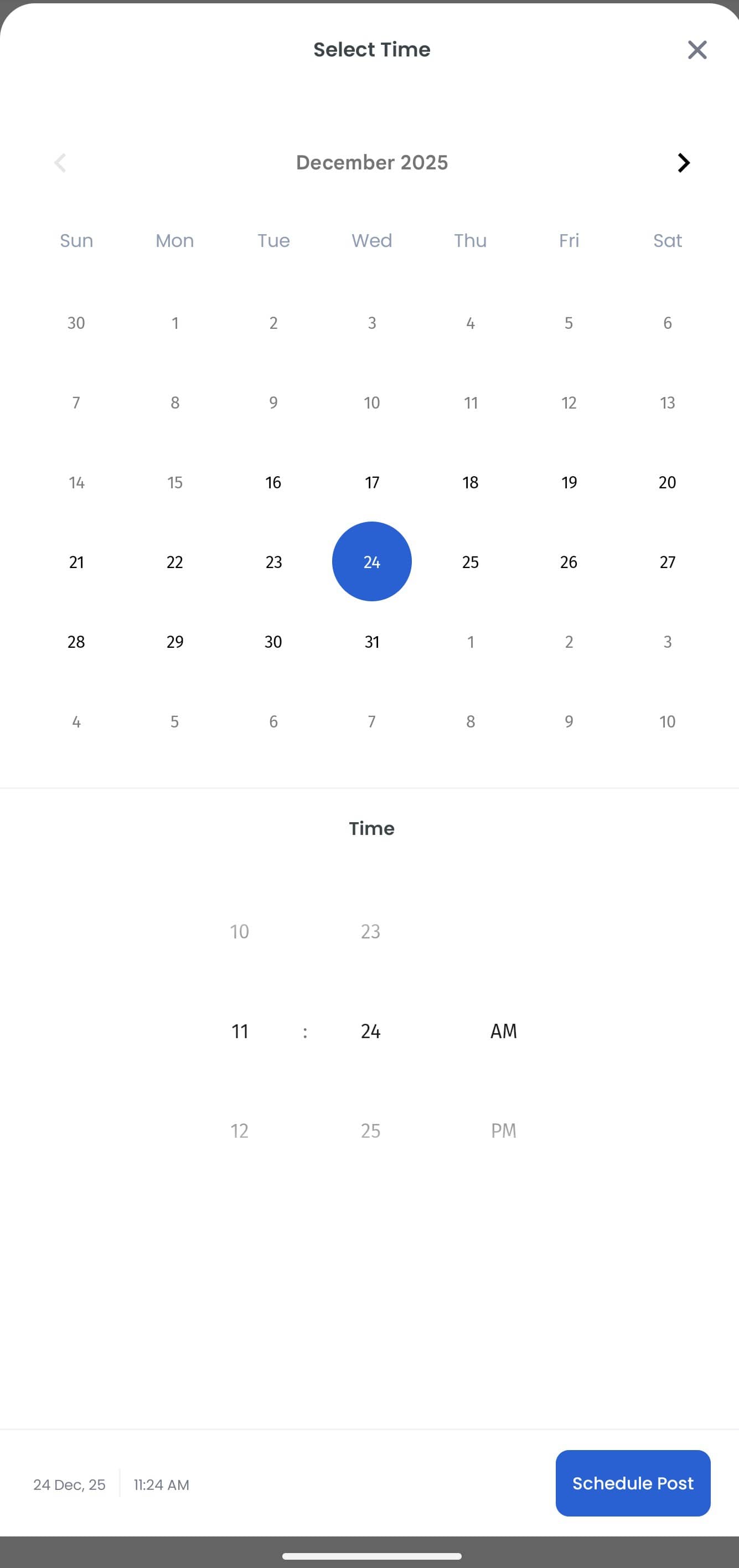
Step 5: Schedule your tweet via mobile
A new window containing the calendar will pop-up. Select the date and time at which you want the tweet to go live. Once you have selected the time, tap Schedule Post button to complete the process.
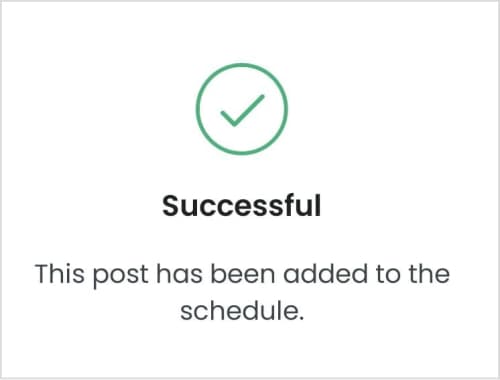
The app will provide confirmation that your post has been scheduled successfully.
How to see scheduled tweets on mobile?
While the X mobile app does not provide the option of scheduling posts or seeing scheduled tweets, you can easily view the scheduled content within the ContentStudio app.
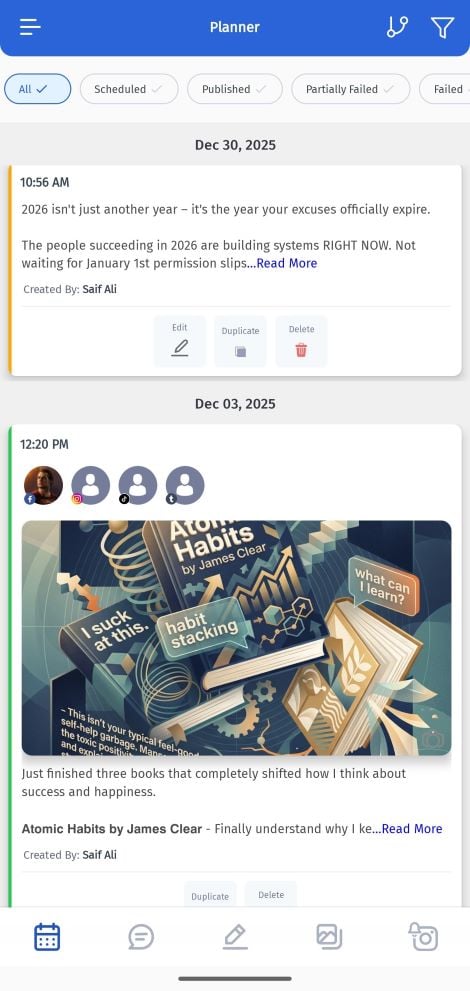
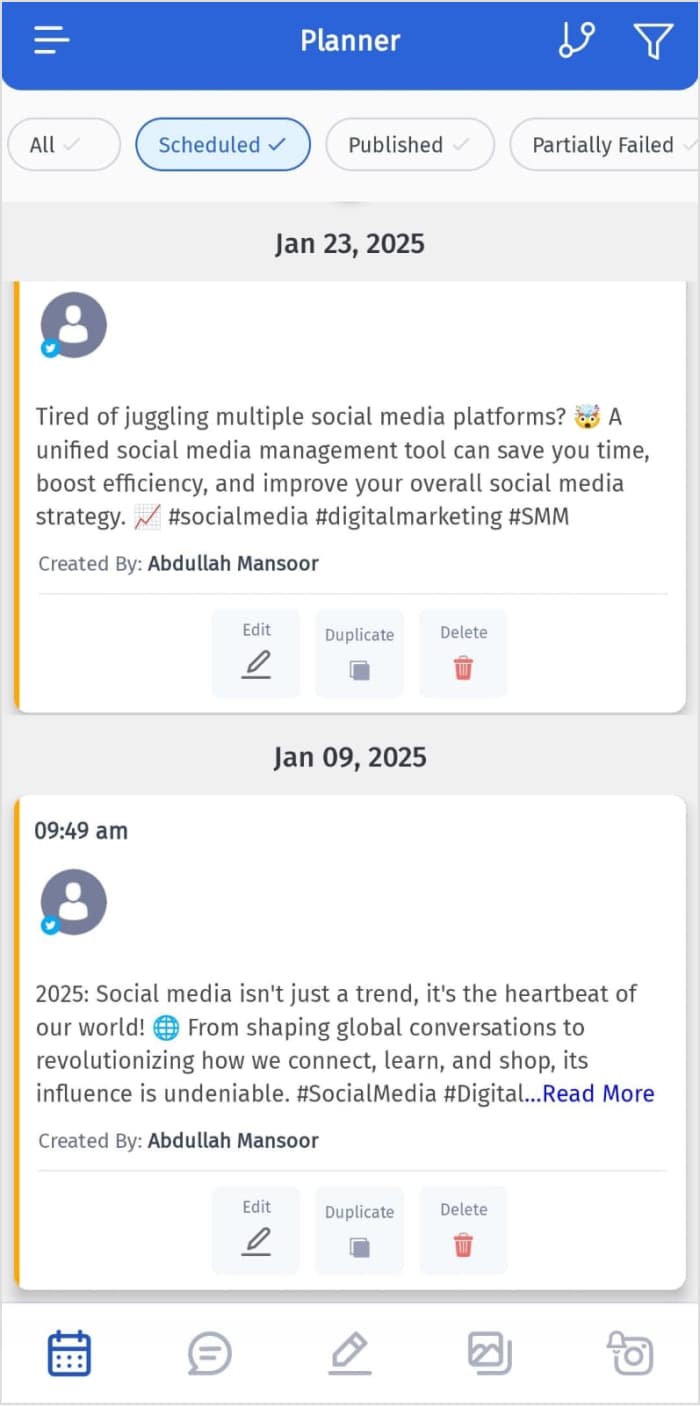
Open the ContentStudio app on your Android smartphone or iOS device. Tap the Scheduled option in the main screen.
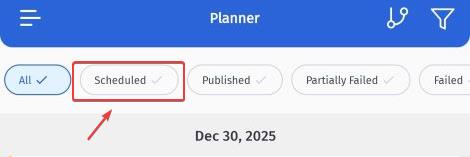
All of your scheduled tweets and posts for different platforms will be shown under the Scheduled tab.
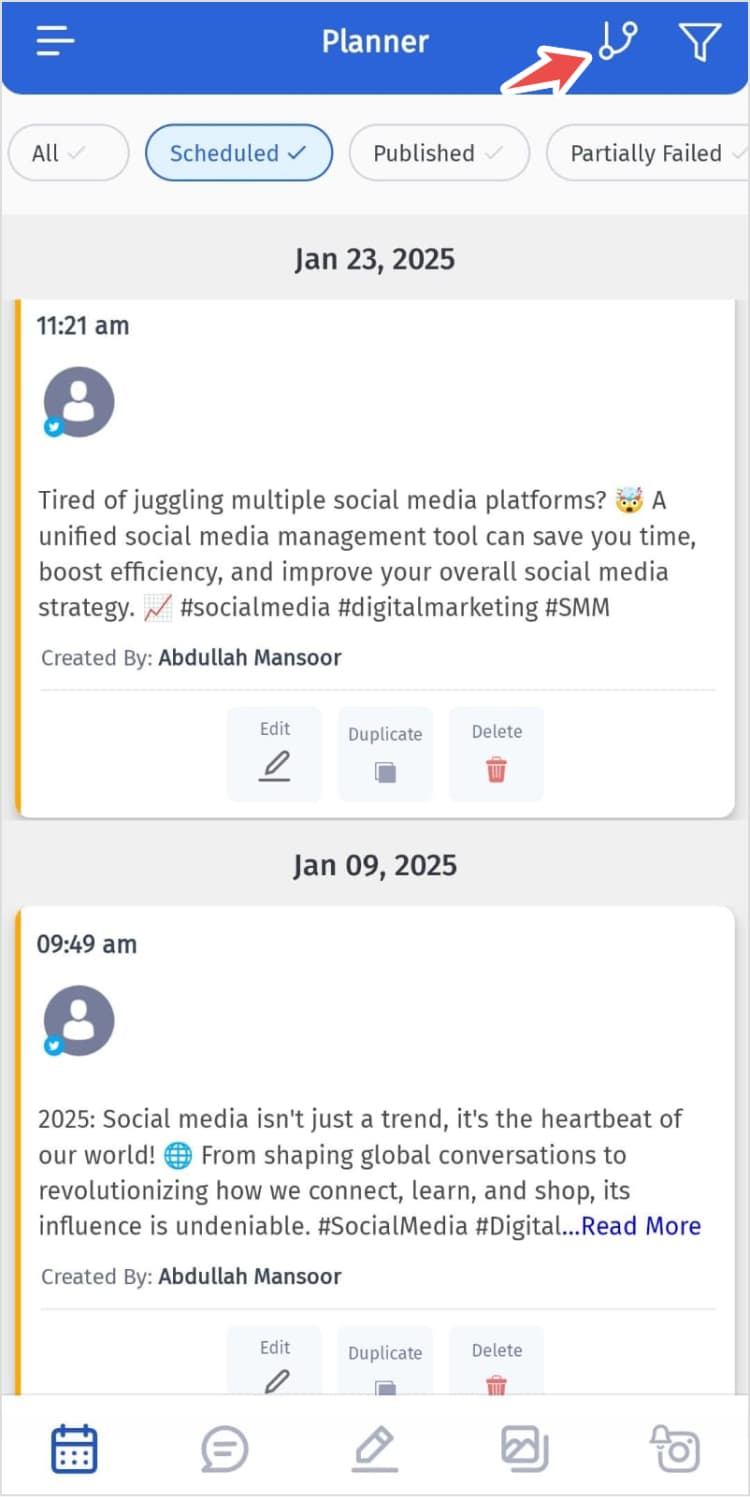
You can use the filter options to view only the scheduled tweets in the ContentStudio app. Tap the filter options.
Select your X (Twitter) account and tap Done.
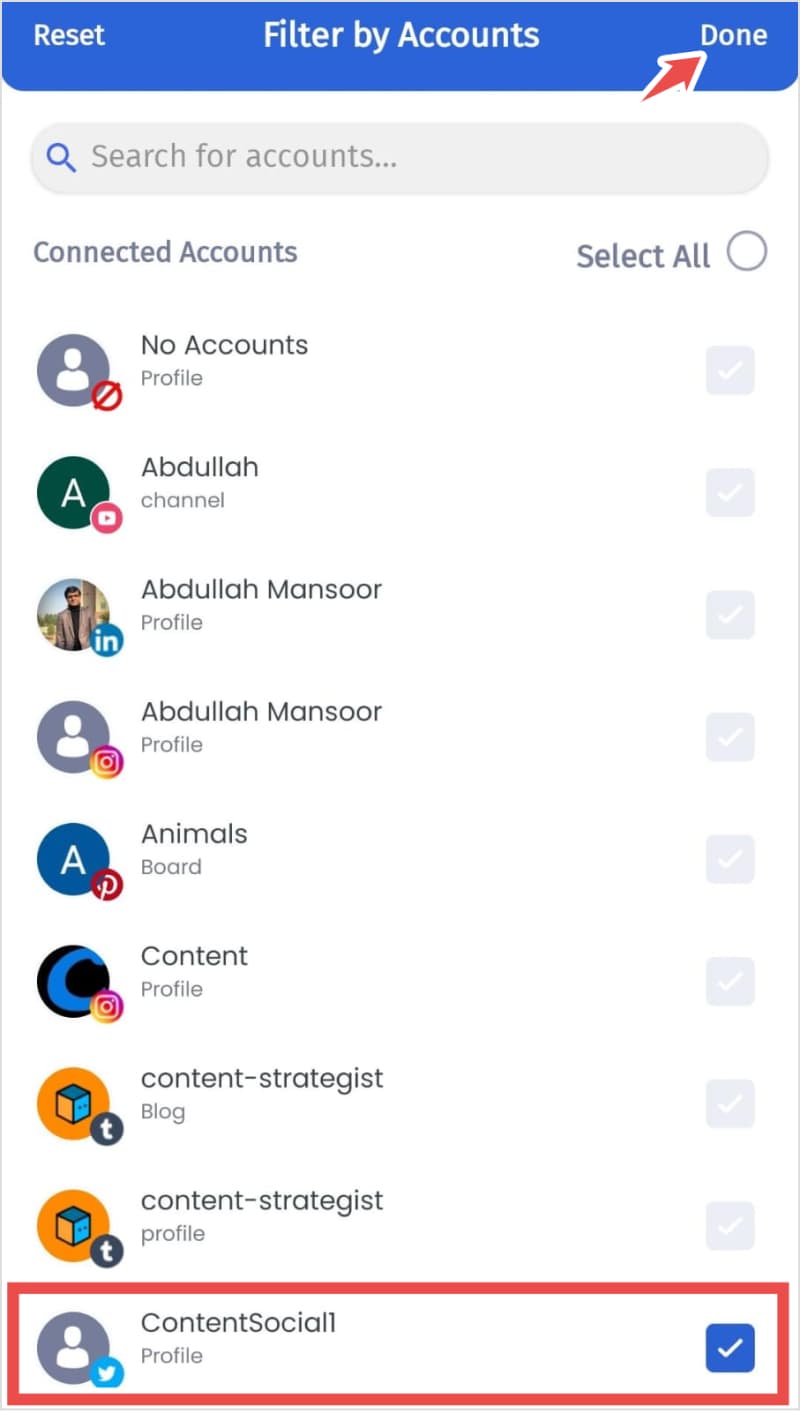
Once you apply the filters, the app will only show scheduled tweets / X posts on your mobile phone.
Bonus tips: 5 best practices to schedule tweets
Writing engaging tweets for X can be a difficult task because there is a lot of data to process on the platform. Moreover, the entire trend can change multiple times within a day!
So, now that you have learned how to schedule tweets, it is also important to make sure you utilize this process in an effective manner to maximize your engagement.
Scheduling tweets and different types of posts on X does not mean you have to post every type of content all the time. Instead, you have to follow certain strategies and best practices to make the best use of scheduling and posting content.
Let’s discuss some of these key strategies and best practices:
1. Standardize your tweeting frequency
You might struggle to strike the perfect balance between tweeting too much or too little. The former will anger your followers, but the latter will leave you lost in a sea of tweets, leading to low engagement and less number of followers.
Generally, tweeting 3 to 7 times per day is the best frequency.
Related: 15+ Twitter (X) content ideas to keep your feed fresh in 2025
2. Optimize your tweeting time
About half a billion tweets are posted on X daily. So, it is not surprising that many tweets are lost and don’t get the engagement, likes, and replies that they might deserve based on their content.
Therefore, if you want to stand out from the crowd and be seen, you must ensure that your tweets are sent when your followers are using the site the most.
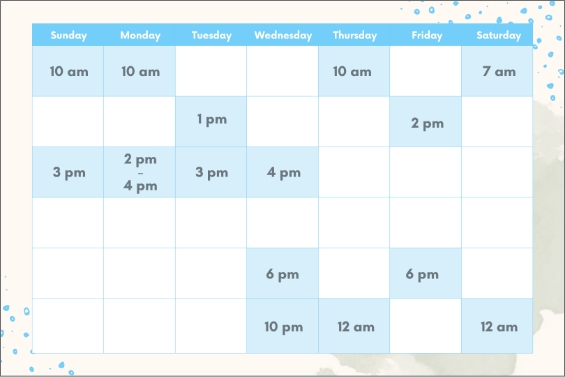
The exact optimal posting time can vary depending on your niche, target audience, and geographic location. Nevertheless, ContentStudio’s internal research has indicated there are certain days and time periods at which you are likely to get maximum engagement from your X followers. These results are summarized in the following image:
Learn more: Top 10 paid & free X (Twitter) analytics tools in 2025
3. Keep up with the trends
Capitalizing on trending topics is an important part of being successful on X. Generally, information like this would be news or event-related. However, because the shelf life of anything resembling news is so short, even a few days’ delays would cause it to lose meaning.
As a result, plan your tweet for an hour and a day when it will most likely be effective while still being current for your audience. For example, you might wish to pause sending out regular tweets if there is a significant news event or tragedy.
Related: 10+ Tweet templates to boost your X (Twitter) engagement
4. Don’t forget analytics
Posting trending content on X and scheduling tweets to post consistently are all great strategies to increase engagement. However, you must not forget the importance of social media analytics as it allows you to identify what is and is not working.
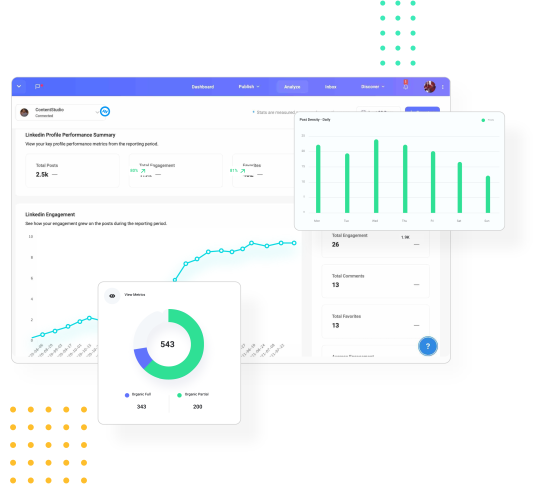
You can obtain detailed X’s analytics with ContentStudio. Such data insights help you get familiar with your engagement, likes, followers, and overall performance of the tweets.
Related: Twitter analytics from ContentStudio to help measure engagement
Analyze, Understand, and Improve Your Social Strategy
Stack your key social metrics against those of your competitors and make targeted steps towards social media success.
14 days free trial - no credit card required5. Regular interaction
It would help if you establish regular communication with your audience in addition to routinely scheduling and posting tweets. Ideally, you should spend time each day monitoring the interactions on your tweets and answering mentions and responses. Respond to any comments made on your tweet and also like the reposts to maximize engagement.
Related: How to increase your Twitter (X) followers every day?
Conclusion
Scheduling tweets might seem like a difficult task at first. But by following the steps in this detailed guide, you can now easily schedule tweets or posts for your X account via the website, ContentStudio dashboard, or the ContentStudio smartphone app.
Since posting tweets at suitable times is an ideal way of reaching your target audience, you should definitely start scheduling your tweets. It will also help you save time and focus on other core social media management activities.
X (Twitter) Marketing
Schedule perfectly crafted tweets and manage your X (Twitter) content with a unified content calendar.
Get Started for FREE
FAQs
Can you schedule Twitter (X) posts?
Yes! You can schedule Twitter or X posts using:
- X website and its basic scheduling features.
- ContentStudio web dashboard to access its advanced scheduling features
- ContentStudio’s user-friendly Android or iOS app.
How to schedule a tweet on mobile?
You can easily schedule a tweet on your mobile through the ContentStudio smartphone application. There is no built-in scheduling feature on X application, so you have to use a third-party app like ContentStudio.
How can I see my scheduled tweets?
If you scheduled your tweets through X’s scheduling feature on the website, you can see it under the Drafts > Scheduled section. On the other hand, if you use ContentStudio to schedule X posts, you can view the scheduled content under Planner.
How many tweets can you schedule on Twitter (X)?
Twitter, now X, allows scheduling 30 tweets within a 15-minute window through its website. There is no maximum limit stated under X’s policies. By choosing ContentStudio to schedule tweets through desktop or mobile, you can schedule as many Twitter posts as you want without even worrying about the 15-minute limit.
Recommended for you

How to create a social media report: free template & step-by-step guide

Social media marketing packages explained: Services, pricing & ROI








Powerful social media management software
14-day free trial - No credit card required.